

If you recruit on LinkedIn, you can import candidates straight from LinkedIn Recruiter and reach them with an automated campaign. Recruiter and Recruiter Lite both work. Replygrow imports Recruiter searches:
- Searches: any candidate search you run from Recruiter's Search page.
- Project searches: a search you run inside a Recruiter project.
- Saved searches: a search you saved earlier, opened again from Recruiter.
A project's pipeline and a job's applicants are lists rather than searches, so they can't be imported. Open the search behind them instead.
The LinkedIn account you connect in Replygrow needs an active Recruiter or Recruiter Lite seat.
Import a Recruiter search
In Recruiter, run your candidate search from the Search page or inside a project, or open the saved search you want to import.
Copy the URL from your browser's address bar.
In Replygrow, go to Search and click Add new search.
Choose Recruiter search, paste the URL into Recruiter URL and click Save Search.
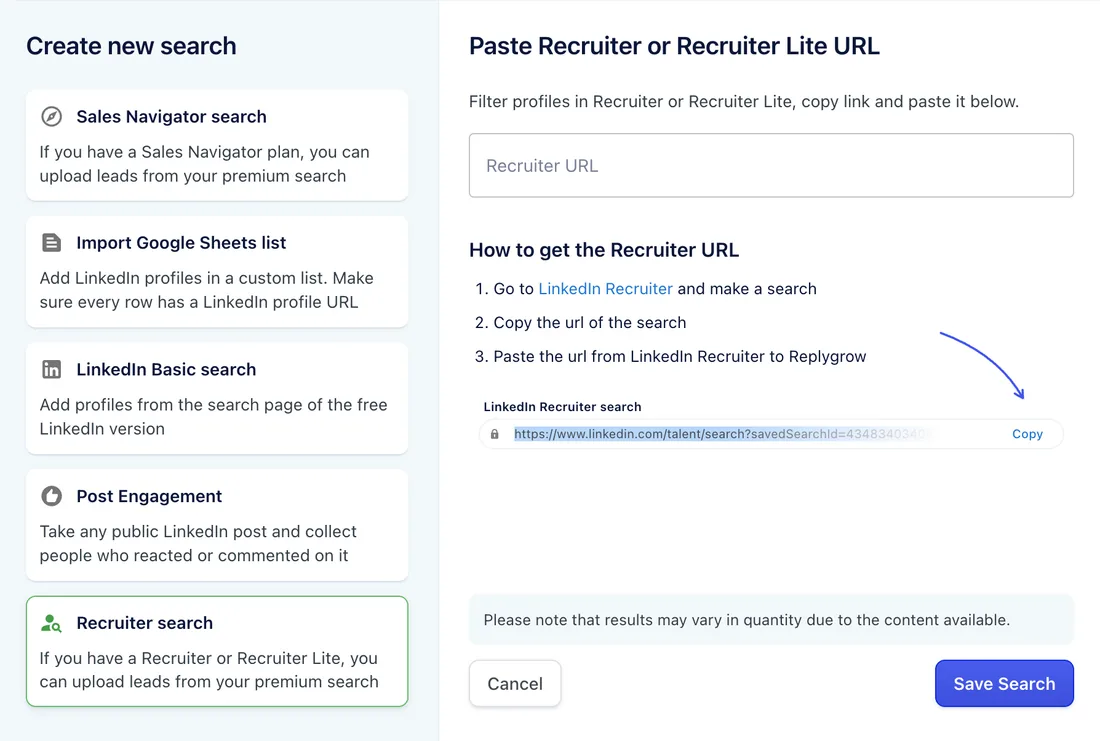
Replygrow processes the search in the background and shows the number of imported candidates in the search list.
Limits and tips
- Up to 2,500 candidates per search. For a larger talent pool, split it into several searches, for example by location or by job title.
- InMail works too. Add an InMail step to the campaign to reach candidates you aren't connected to. It uses the connected account's own InMail credits.
- Recruiter import is included on every Replygrow plan. See pricing.
For the InMail and search limits on each Recruiter plan, see LinkedIn Recruiter pricing.
If a Recruiter search doesn't process
Recruiter searches sometimes fail to process for two reasons:
- LinkedIn asks for two-factor authentication on the Recruiter account.
- LinkedIn blocks two people using the same Recruiter seat at the same time.
If your search stays unprocessed, contact support and we'll help you get it running.
Next step
Add the search to a campaign: on the Leads step, choose Existing Search list. See Create a campaign.